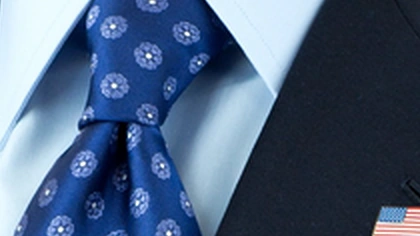
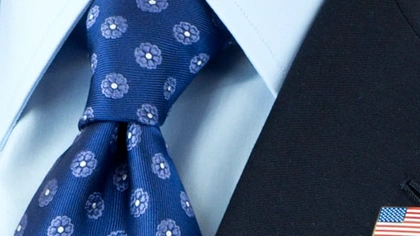
Sharper edges and more resolution, on your own graphics card — free, unlimited, no sign-up. If the free methods are not enough, send it to a cloud AI model.
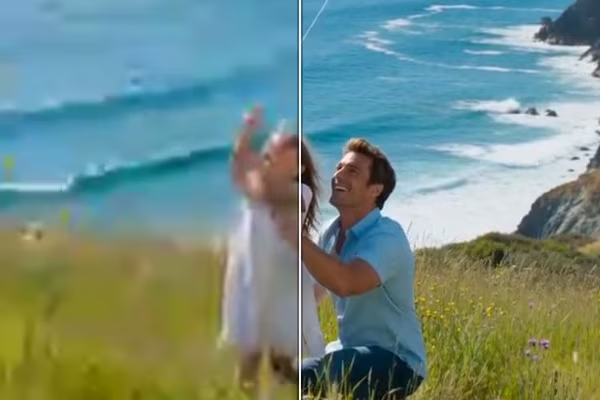
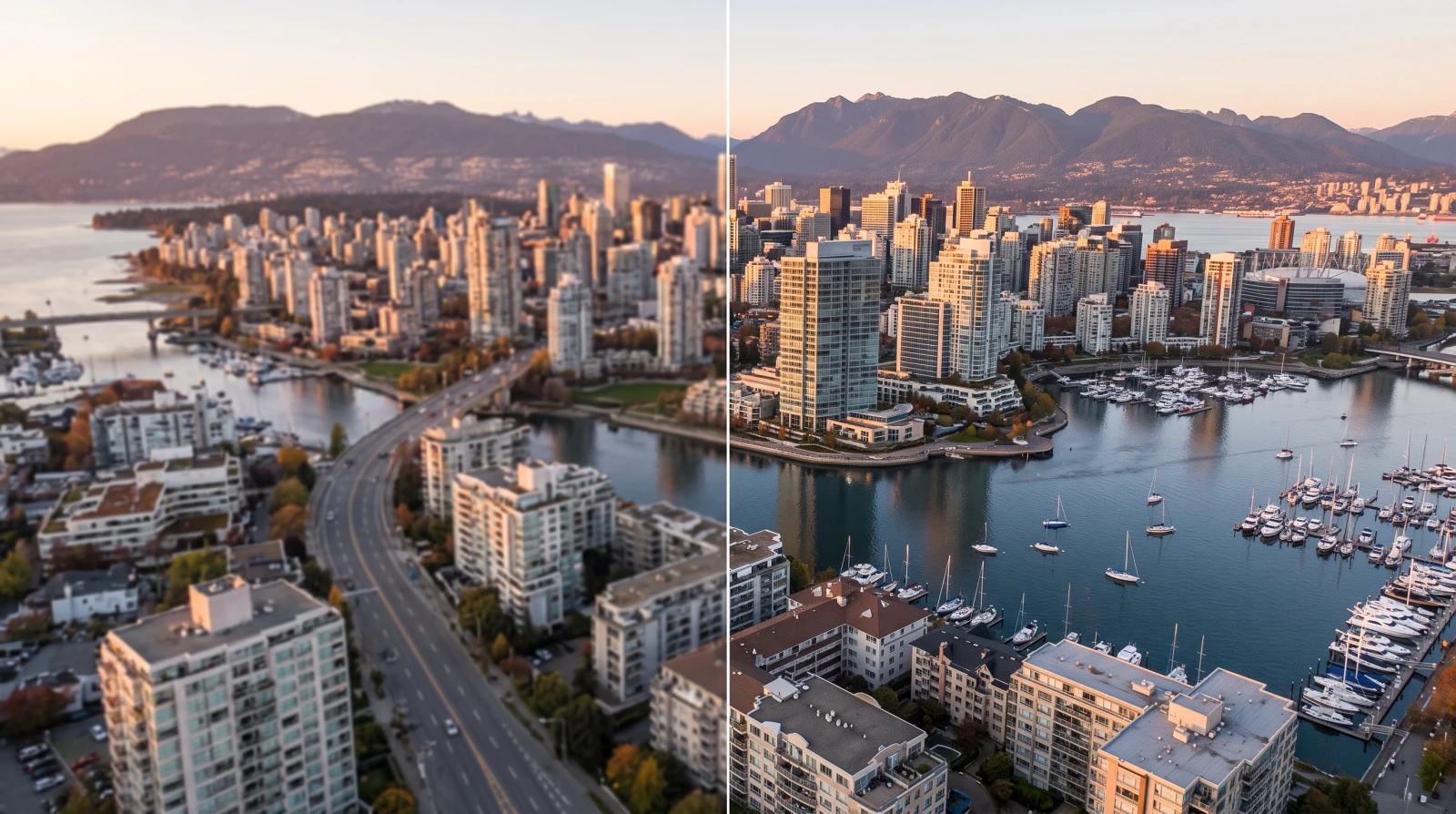
BeforeAfter · 3×
No sign-up · no watermark · unlimited · runs on your device
Find the photo you have. Each says what to expect and which method the measurement points at.
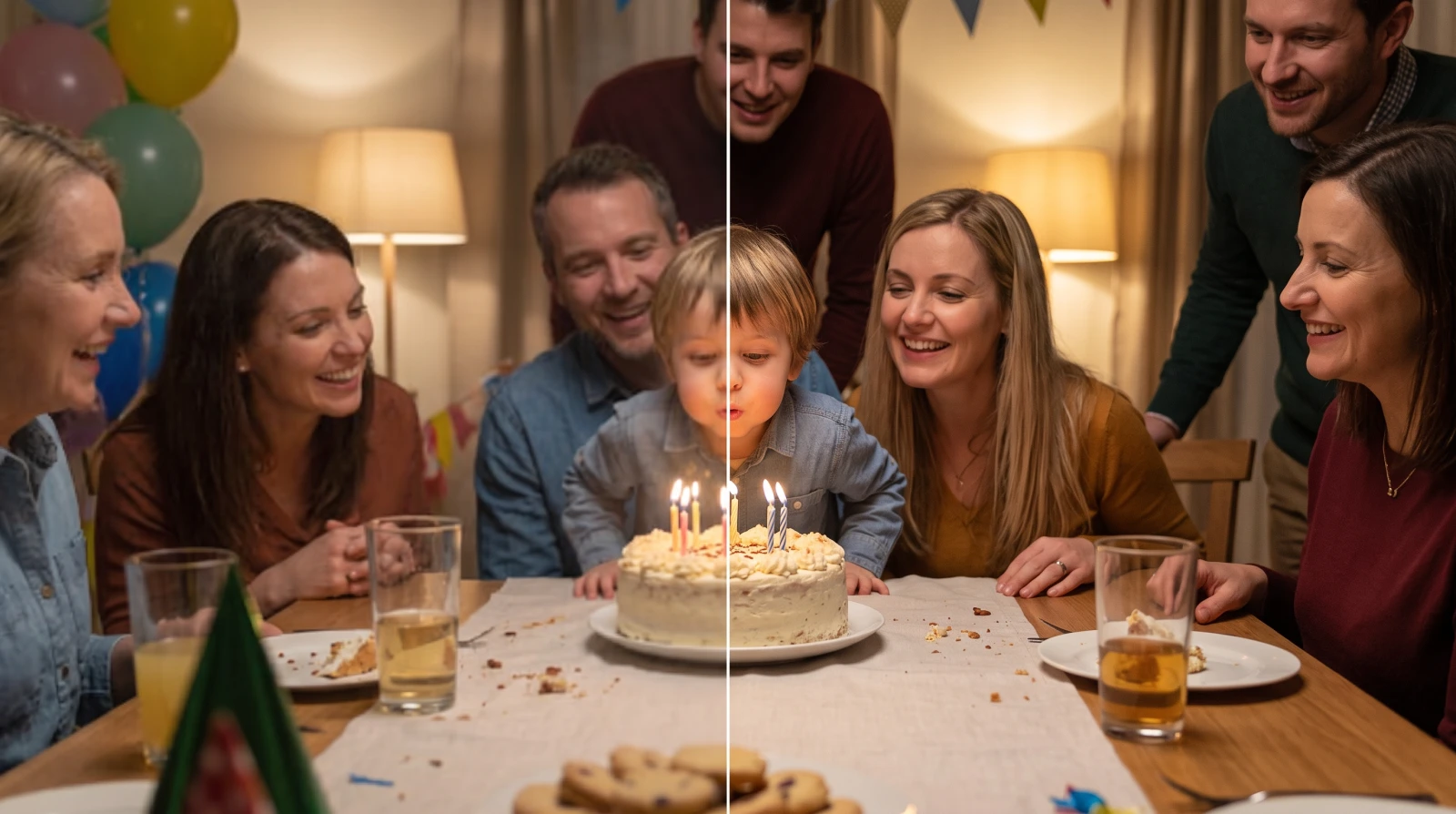
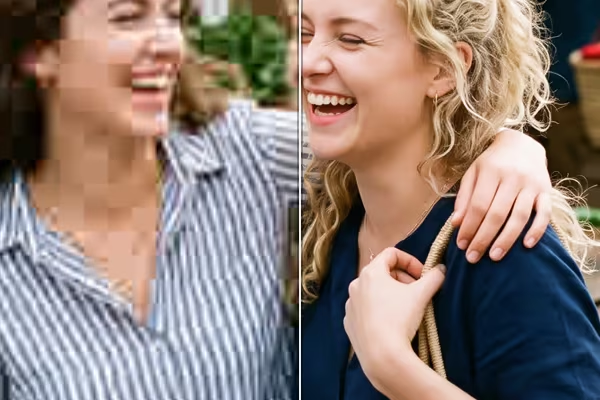
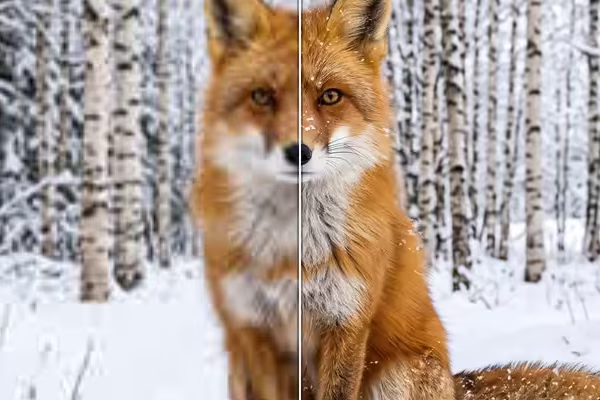
Enhance photo quality on a photo that is too small
A thumbnail, an old phone picture, a copy that has been shrunk. Every bit of captured detail is present with too few pixels to show it, and reconstruction is what brings it back. Keep the default here — on clean photographs it had the best structural score of everything tested.
BeforeAfter
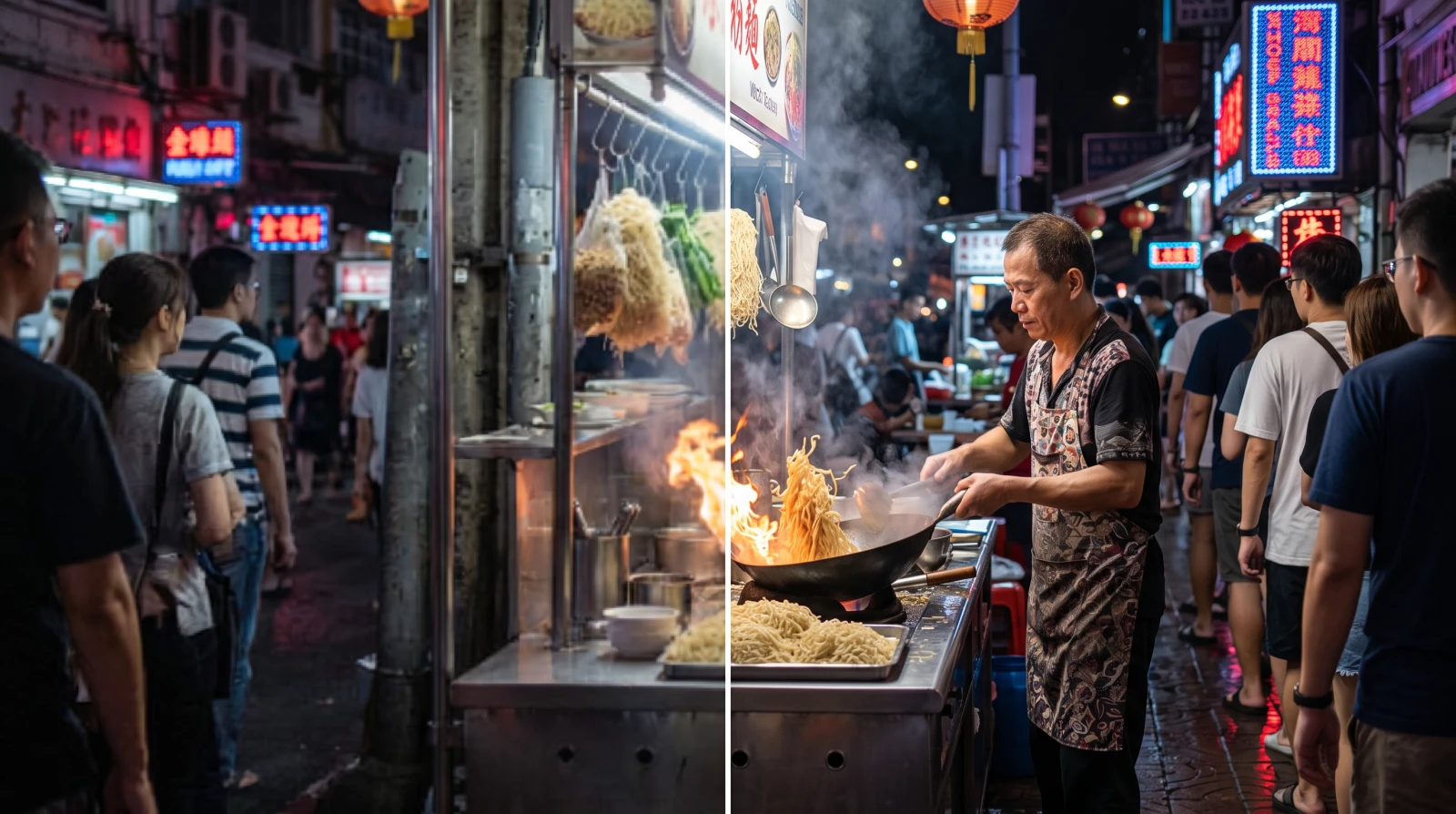
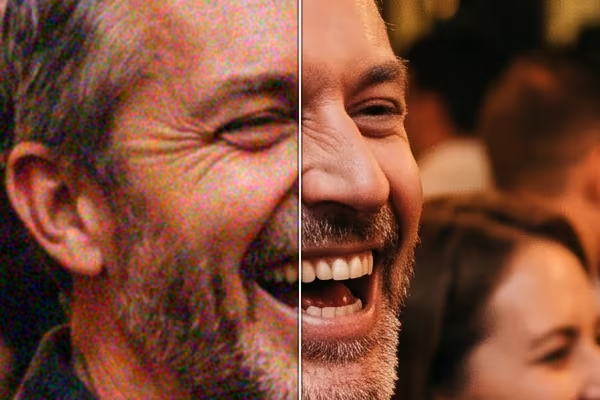
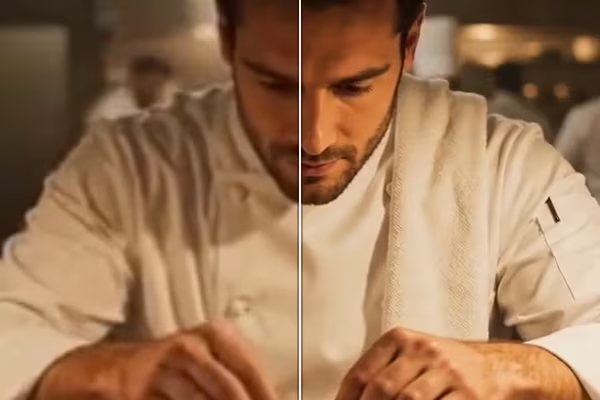
Enhance a photo that came through a messaging app
Small and heavily compressed at once, with blocky patches in flat areas. This is the case the whole measurement turns on: the default drops from first to eighth here, and the methods with noise reduction switched on beat it on twelve images out of twelve.
BeforeAfter
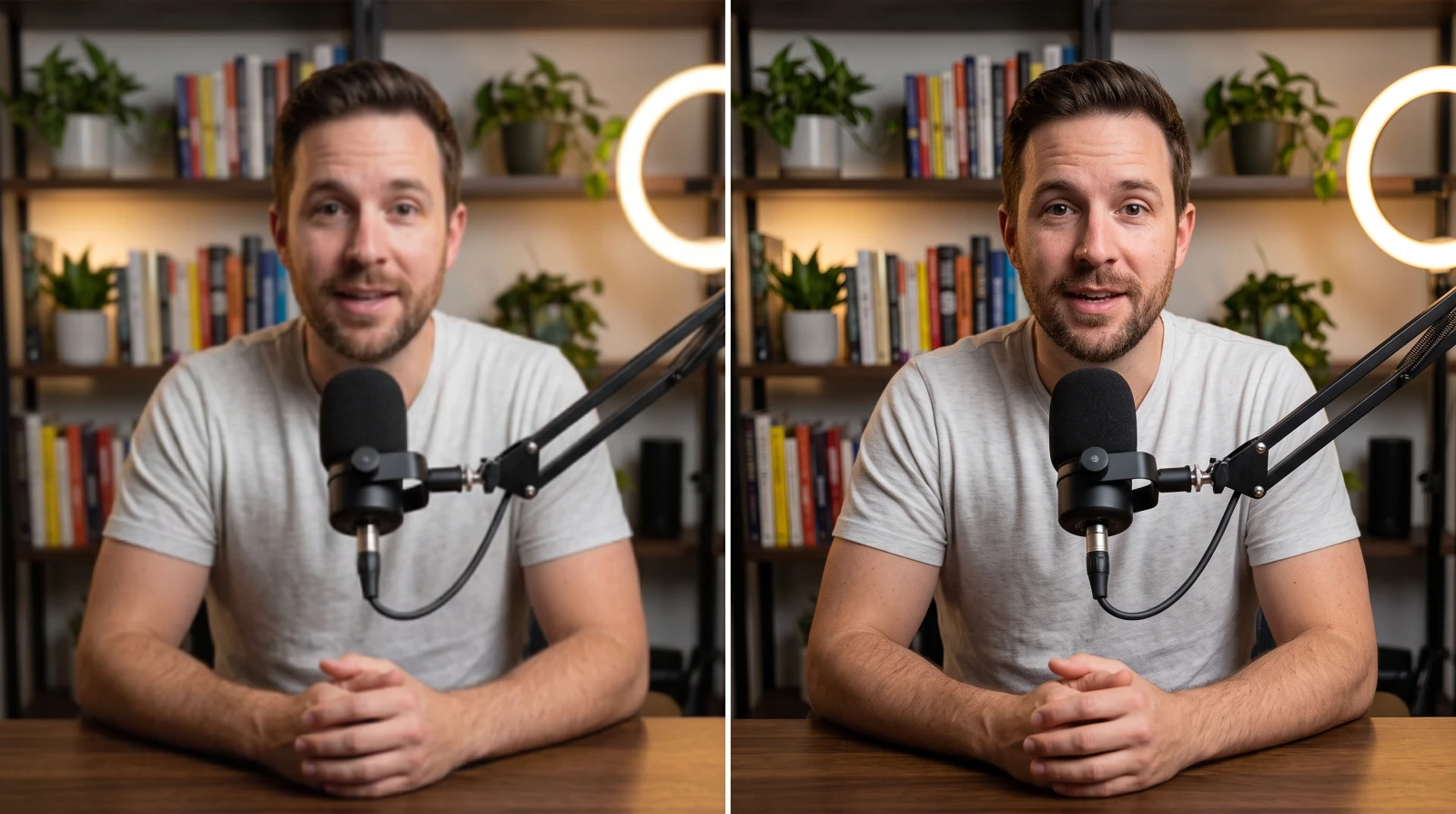
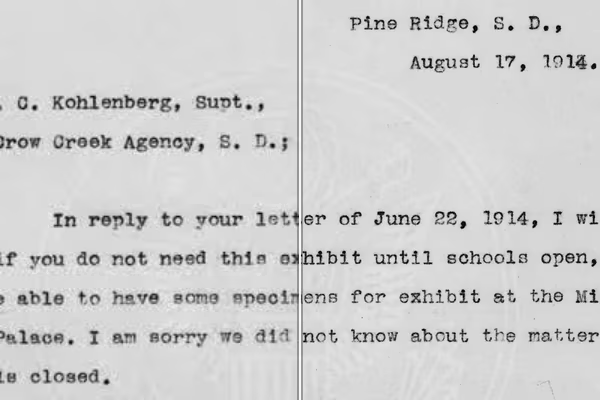
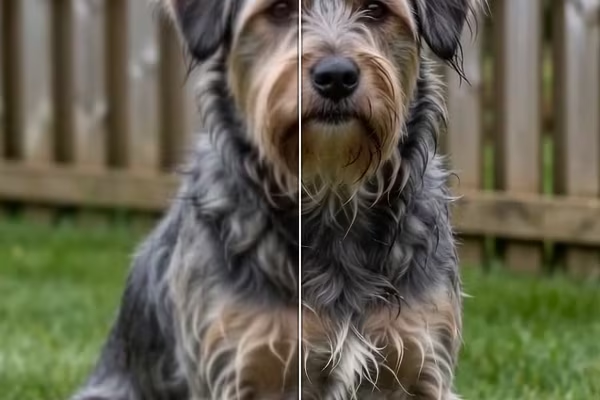
Enhance an old scan or a screenshot
Material made of edges rather than continuous texture reconstructs most cleanly, because a windowed-sinc filter has hard transitions to hold together rather than smooth gradients to guess at.
BeforeAfter
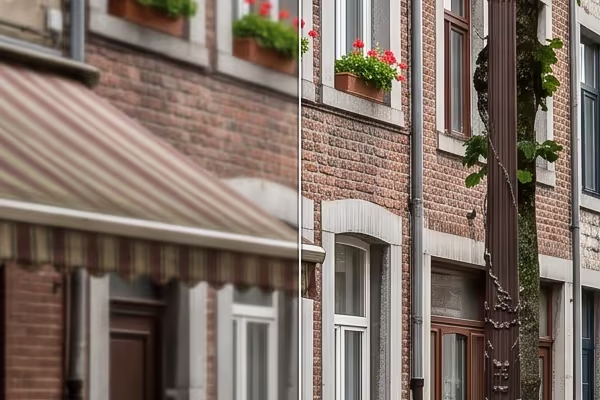
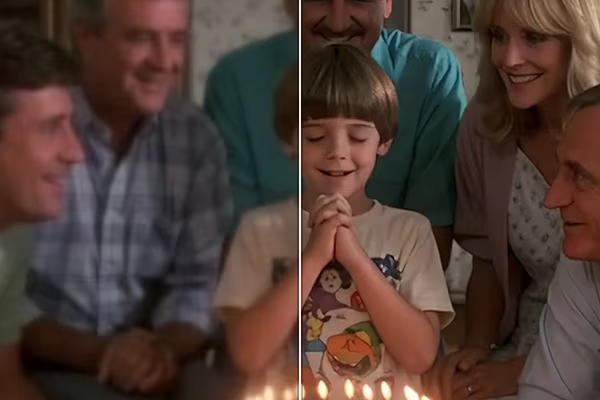
Enhance a photo for print or a large screen
When the resolution is simply not enough for the size you need. The reconstruction is real — the file really does hold four times the pixels at 2× — but the detail is rebuilt rather than recovered, and the ceiling is published below.
BeforeAfter
How to use it
How to enhance a photo free, in three steps
Step 1
Drop your photos in
Drag one picture or a dozen onto the box above, or click to browse. Pick 2× unless you specifically need more; the page tells you when a scale will not fit your device.
Step 2
Decide which kind of photo you have
Zoom into a flat area — a wall, a sky, a shoulder. Blocky square patches mean compression, and that is the case to switch methods for. Clean grain or nothing means keep the default.
Step 3
Compare, then download
Drag the before/after slider over fine repeating detail rather than a flat area. Then download. No watermark, no sign-up, no limit on how often.
The measurement
Which method wins depends on whether your photo was compressed
24 photographs, each degraded two ways. A photo quality enhancer has no single best method, and this is the run that says so.
What you have now · the browser's own 2× scaling
Enhanced 2× · the default — 38.9 dB
The full-size original · the ceiling, not a promise
The same region at 100%. The left pane is not a straw man — it is what your browser does by default. The right pane is the ceiling, and the middle one does not reach it.
One condition flips the whole recommendation. On a photograph straight off a camera the free default had the best structural score of everything tested; on one that has been through heavy JPEG it falls to eighth, and Soft beats it twelve images out of twelve. They are the same shader — Soft simply has noise reduction switched on.
One entry in the run was a 4.9 MB trained network whose name and stated purpose match this page exactly. It won zero of 24, and it is not offered here.
On your device
Free photo enhancer methods, and which to pick
All of these run on your own graphics card. Which one to use is decided by the section above, not by taste.
Method
Best for
Download
Speed
Balanced (default)
A photo straight off a camera or phone
None
92 ms
Soft
A photo with visible blocky patches
None
68 ms
Unpixelate (Trained)
Heavy compression, when the download is worth it
4.9 MB
833 ms
Photo (Grainy Source)
Grainy sources at 4×
5.9 MB
513 ms
Speeds are for a one-megapixel photo at 2× on a laptop GPU. A download happens once, then stays cached — and on a clean photograph it buys a coin flip, which is why the default needs none.
In the cloud
AI photo enhancer models, when you want a higher ceiling
These upload the image and run on our servers for credits, one of them from Topaz Labs. Precision models improve the pixels you have; generative ones draw detail that was never recorded.
Model
Type
Best for
Per photo
AI Restore
Generative
Cleans and enlarges in one pass
1 credit
AI Crisp
Precision
Sharper and cleaner, with nothing invented
1 credit
Topaz Standard
Precision
Denoises, removes compression and enlarges in one pass
6 credits
Billed once per photo rather than by the pixel, so the figure on the Run button is the whole price before anything is sent. Credits are spent per run — no subscription — and the result is kept for 30 days unless you delete it.
How do you enhance a photo for free?
Drop the photo into a browser tool that processes it locally. FreeUpscaler rebuilds it on your own graphics card and hands it back — no account, no watermark and no limit.
Which method is best depends on one thing: whether the photo has been through heavy compression. Across 24 test photographs the free instant method was first on clean sources and eighth of the field on compressed ones — so the useful advice is not 'use the AI one', it is 'work out which kind of photo you have'. When a photo needs more than the local methods can give, the cloud models pick it up and are priced per image.
No method reached the original's own edge contrast. The best got to 85%; the page says so rather than promising restoration.
Before you start
What an image quality enhancer cannot fix
Four limits, every one of them a number in the run rather than a disclaimer.
It cannot restore the original
The best method measured reached 85% of the original's own edge contrast, and the default 84%. None reached 100%. Reconstruction builds a plausible version of detail that was discarded; it does not retrieve it, and no tool anywhere does.
It does not change exposure, colour or composition
None of these methods touch brightness, white balance or framing. They change resolution and edge definition. A photo that is too dark is a different problem with a different tool.
It is not face restoration
Faces are enhanced like everything else, and nothing here will redraw one — the methods reconstruct from your own pixels rather than generating a plausible person. Portrait groups were the hardest scene in the whole run, scoring lowest of the six.
It cannot fix motion blur or missed focus
Rebuilding a smeared photograph larger gives you a larger smear. That information was destroyed at capture time. The blurry-photo page explains which kinds of blur can be helped and publishes how much.
FAQ
Frequently asked questions
How do I enhance a photo for free?
Drop the photo onto the box above and pick a scale. It is decoded in your browser, reconstructed on your own graphics card and handed back — no account, no watermark and no limit. The default needs nothing downloaded and takes about a tenth of a second for a one-megapixel photo.
What does a photo enhancer actually change?
Three things, and it is worth knowing which one your photo needs. Edge definition: local contrast raised along edges so the photo reads as crisper. Artefact softening: the blocky texture left by heavy compression becomes less visible. Resolution: more pixels, reconstructed properly rather than duplicated, so the image holds up at a larger size. What it does not change is exposure, colour or composition, and it cannot recover detail the camera never recorded.
Do you upload my photo?
Not the free methods. The image is decoded and processed inside your browser tab, and you can verify it in ten seconds: load this page, disconnect from the internet, and enhance a photo anyway. A cloud model is the exception and says so before it runs — it uploads the image for that job, and the result is kept for 30 days unless you delete it.
What is the best photo enhancer?
It depends which of two jobs you want done, and this page publishes both answers. For a photograph straight off a camera, a free instant method that runs on your own machine is the ceiling — it had the best structural score of everything tested, and downloading a trained network buys a coin flip. For a photograph that has been through heavy compression, a trained option genuinely wins, by 0.81 dB and eleven images of twelve. For the highest ceiling of all, the cloud models beat anything local here, and they cost real money.
Which method should I pick?
It depends on one thing: whether your photo has been through heavy JPEG compression. Zoom into a flat area — a wall, a sky, a shoulder. Blocky square patches mean compression, and that is the case to switch methods for. Clean grain or nothing means keep the default.
Is the AI option better than the free instant one?
Not on clean photographs, and that is measured rather than asserted. The 4.9 MB trained option won six of twelve on pixel accuracy and zero of twelve on structural similarity — a coin flip for a download. On compressed photographs it does win properly, by 0.81 dB and eleven images of twelve. And the trained option that is actually named 'Photo' won nothing at all: zero of 24 photographs, last on clean sources, 4.17 dB behind the free instant method. That is why it is not on this page.
Will it restore the original quality?
No, and nothing can. Across all 24 test photographs, the best method reached 85% of the original's own edge contrast and the default reached 84% — nothing tested got back to 100%. Reconstruction builds a plausible version of detail that was thrown away; it does not retrieve it. Any tool promising the original back is describing something that is not possible.
My photo is blurry rather than small. Will this help?
Partly, and there is a better page for it. If the photo is the right size and simply soft, rebuilding it larger is the wrong operation — use the blurry-photo page, which keeps your dimensions and narrows the soft edges instead. If it is both small and soft, start here: reconstructing at a larger size is what recovers apparent detail.
Which format should I use?
PNG, JPEG and WebP all open. Output is always PNG, because re-encoding a freshly reconstructed image as JPEG would immediately give back some of what you just gained — and on this page's own measurements, JPEG damage is the thing that most changes which method wins.
What are credits, and why sign in?
Credits pay for the cloud models, because those runs cost real money to perform. Signing in is the wallet for them and nothing else — the local methods never ask, and nothing about them is gated. A new account starts with 3 free credits, enough to put one photo through the cheapest cloud model and see what it does.
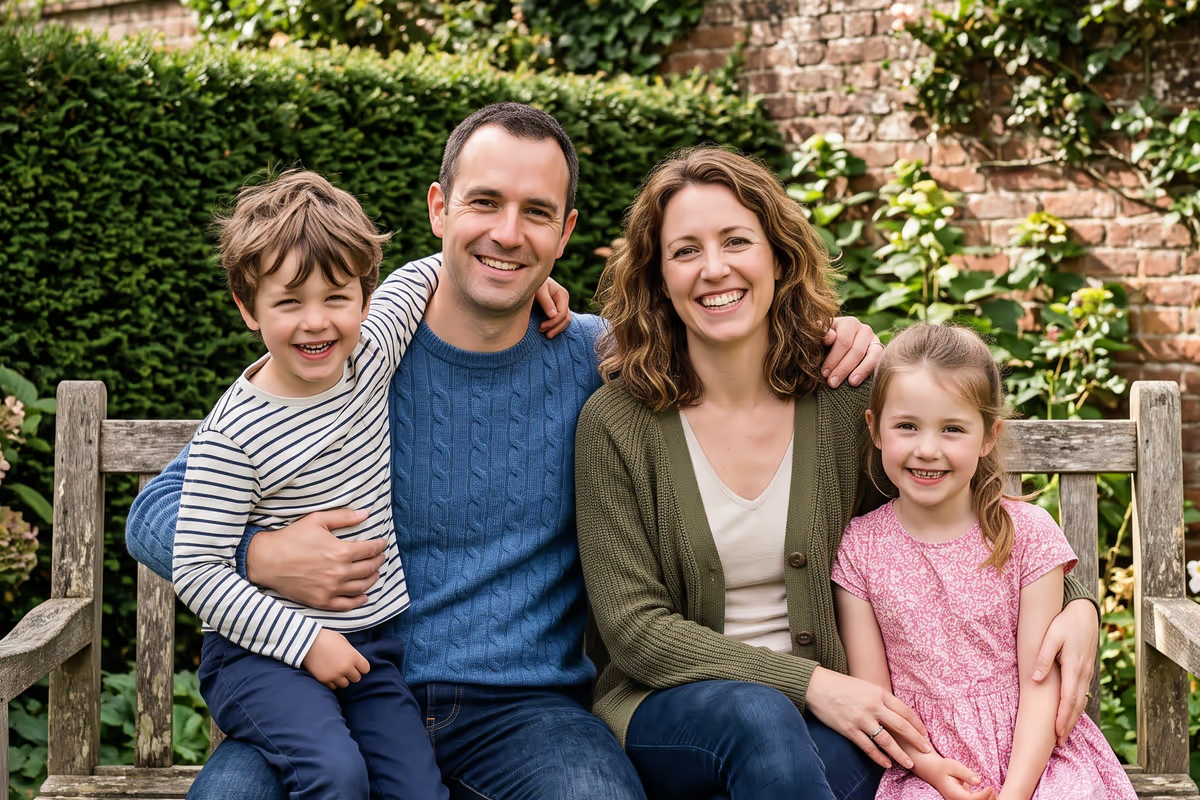
 BeforeAfter