Fix a blurry video that came out soft
BeforeAfterFix a blurry video free on your own graphics card — nothing uploaded, no sign-up. Or step up to a cloud AI model.

No sign-up · no watermark · unlimited · runs on your device
Drop videos here
Checking what this device can do…
BeforeAfter
BeforeAfter
BeforeAfter
BeforeAfterOne file or a dozen. The page checks what your device can handle before you choose, so you hear about limits up front rather than half-way through a job.
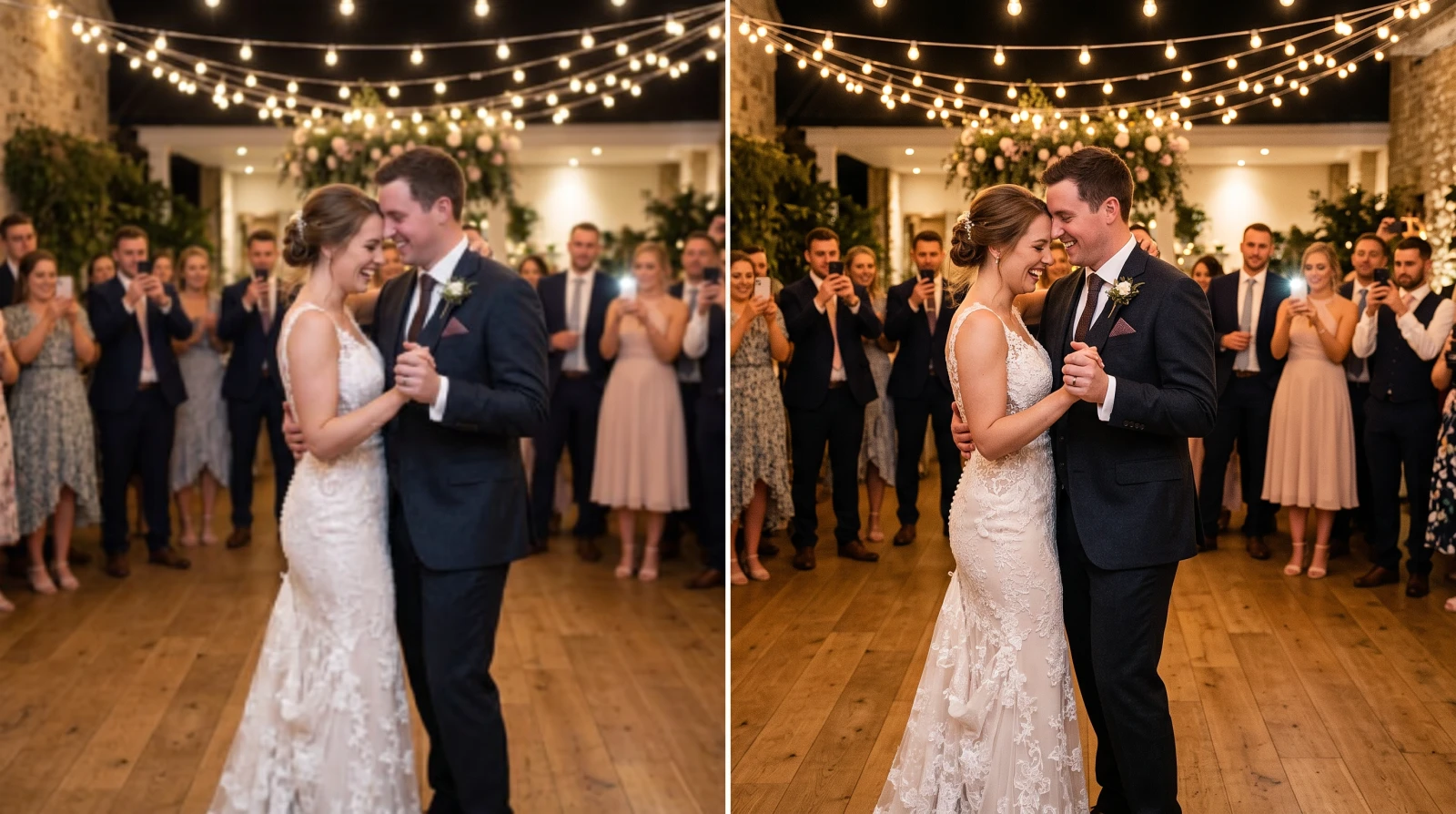
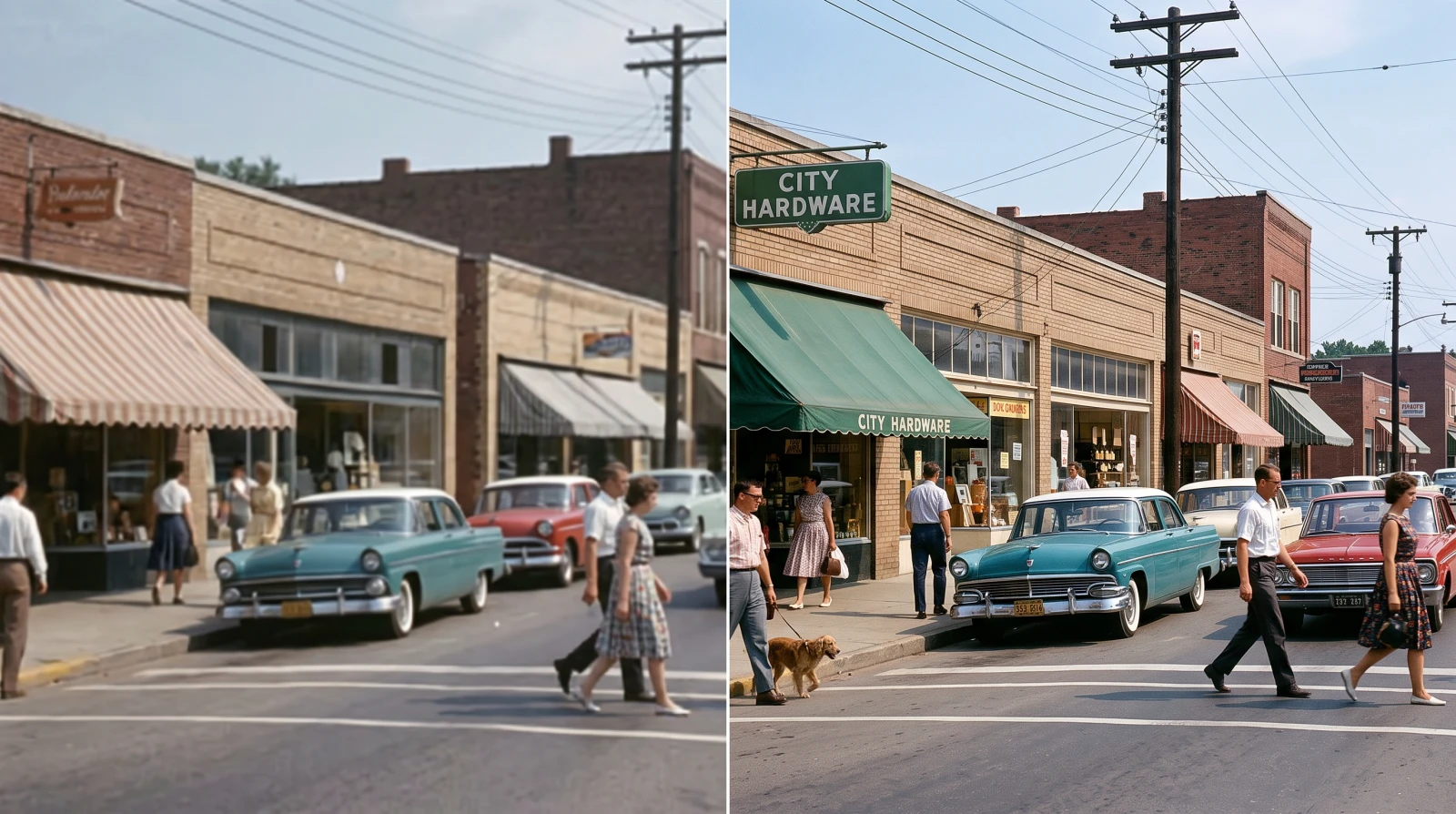
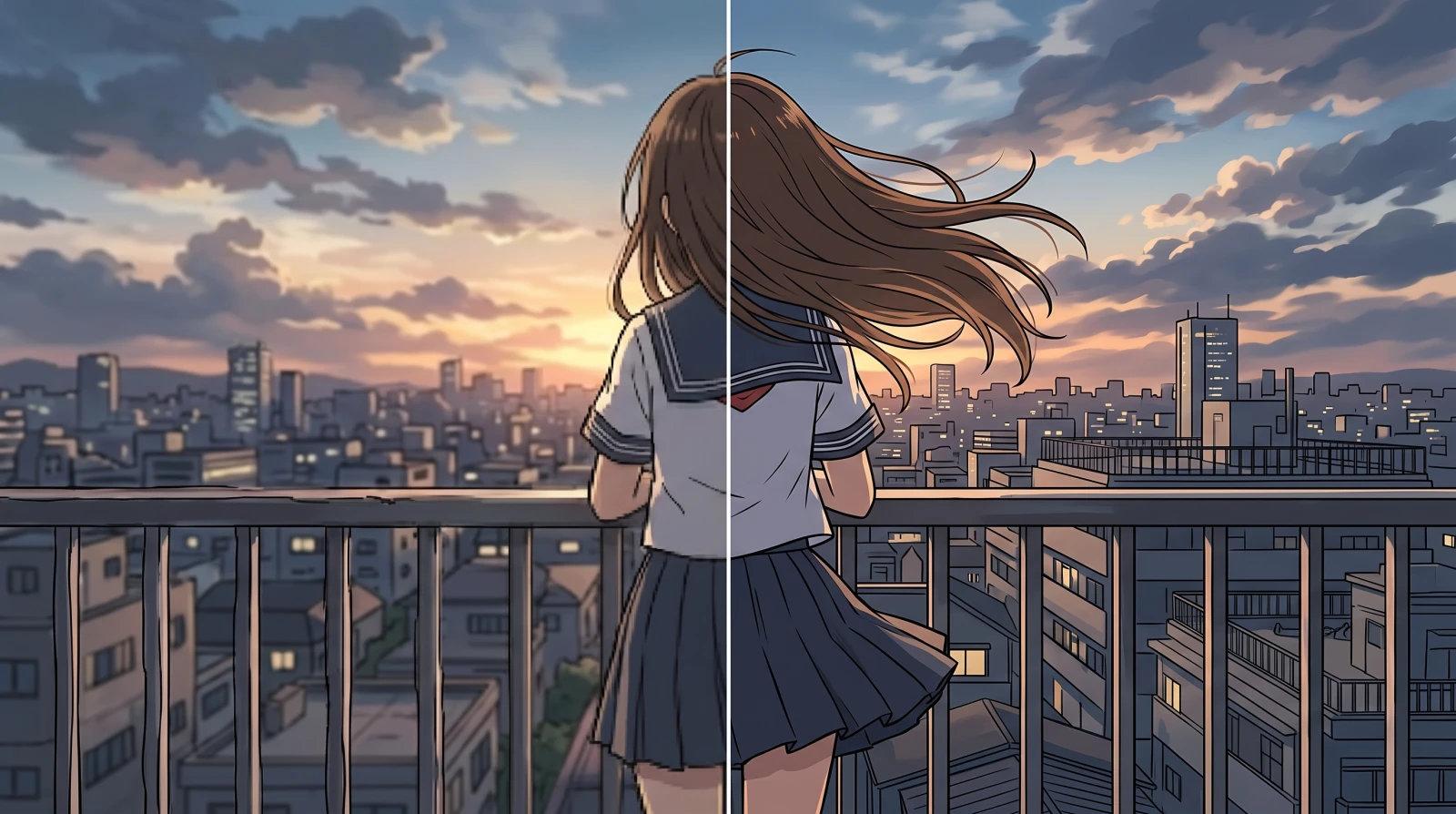
Drag the before/after slider over hair, fabric, foliage or type — not over a flat wall, where by definition nothing changes. If the after side shimmers or looks brittle, drop the Deblur dial a notch and re-run.
No watermark, no sign-up, no cap on how many times you do it. The audio track is copied across in its original form, so it loses nothing and stays in sync.
Both run on your own graphics card, for free and with nothing uploaded. Start with the default and only change it if the result looks wrong.
| Method | Best for◆ | How much it changes | Speed |
|---|---|---|---|
| Deblur (Light) — default | Most footage. Start here. | The stronger of the two | Instant |
| Anime (Restore) | Footage that is only slightly soft, or looks brittle after the default | Gentler — stays closer to your original | About 3× slower |
Both of these work only with the detail your frames already hold, which is the ceiling they share. When neither does enough, the answer is not a stronger setting — it is a cloud AI model, which redraws the frame instead of sharpening it.
These upload the clip and run on our servers for credits, one of them from Topaz Labs. They are generative: instead of steepening the edges your frame already has, they redraw the frame as they think it should look. That is a much higher ceiling — and a different promise, because what comes back is invented rather than recovered.
| Model | Type | Best for | Per second at 1080p |
|---|---|---|---|
| AI Video Restore | Generative | Rebuilds detail the clip lost, frame to frame | ≈ $0.18 |
| Topaz Starlight | Generative | Rebuilds detail rather than recovering it | ≈ $0.06 |
Priced by the second at the size you choose, so 4K costs four times 1080p. The figure for your own file sits on the Run button before anything is sent, and credits are spent per run — no subscription. No numbers on this page are theirs. Every figure further down was measured on the free methods; the evaluation set has no cloud run in it yet, so what is claimed for these is what kind of model they are, not how far ahead they finish.
Partly with the free methods, and further with an AI model. A filter running on your own machine sharpens the edges your frame already holds: that works well on footage which is merely soft, and does nothing at all where the detail was destroyed — camera shake, badly missed focus. A cloud AI model is the other kind of tool. It redraws the frame rather than sharpening it, so it produces a result in the cases where the free methods have nothing to work with, and a better one almost everywhere else.
Start free. Drop the file onto this page, drag the before/after slider, download — no account, no watermark, no length limit, and nothing leaves your browser. If that is not enough, the step up is a cloud AI model rather than a stronger setting; it uploads the clip, needs an account and costs credits by the second.
Which kind you need takes one paused frame: if a stationary part of the picture is sharp and only the moving part is smeared, sharpening cannot help and only an AI model will change anything.
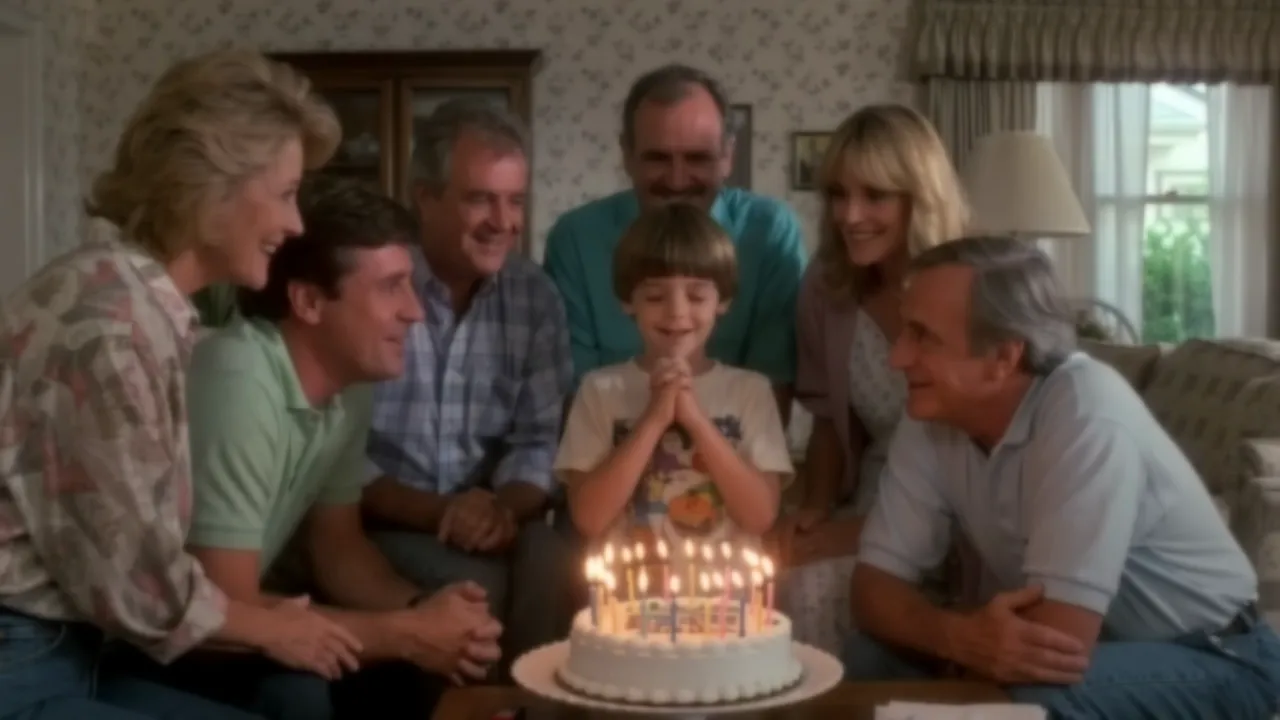
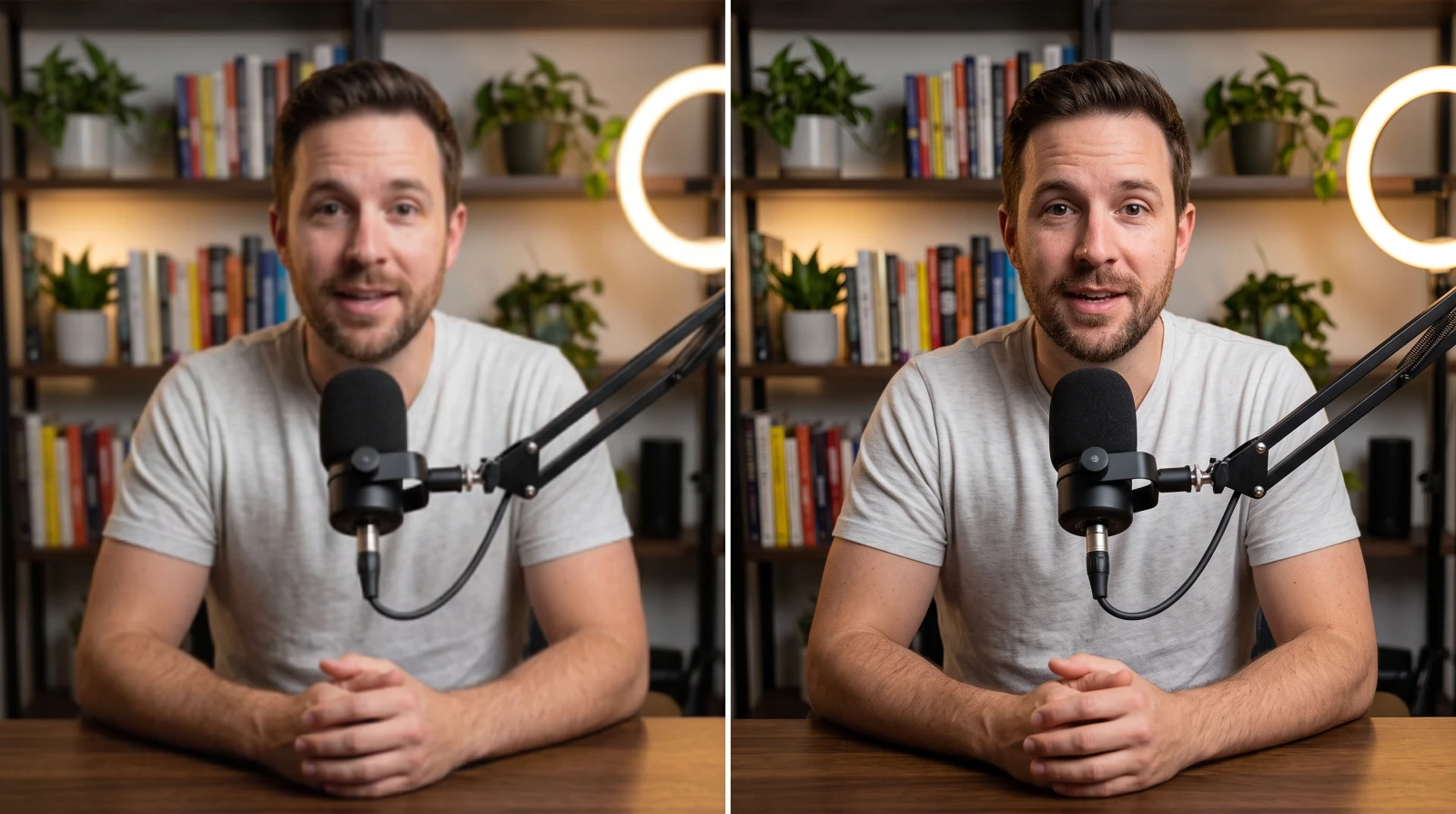
As it arrived · soft

Fixed · the default method

The original · what the blur took
Nine clips were softened by a known amount and run through both free methods. The default brought back about a third of what the blur had taken — roughly half on ordinary camera footage, and up to 78% on animation and motion graphics. One clip came out worse than it went in: a dark scene with no hard edges anywhere, which is the honest limit of sharpening and the clearest case for the cloud models above.
Every tool in this category promises to unblur anything. Two of these cases improve less than you would hope and two cannot improve at all — not by sharpening, which is what runs on your own machine. The last two are where a generative model is the only thing left, and it buys you an invention rather than a recovery.
The detail is there; there are just too few pixels to show it. Sharpening makes the pixels harder, not the picture better. Enlarge it instead — the upscaler does the edge work in the same pass.
It will change, and not for the better — over-sharpened edges shimmer between frames in a way they never do in a still. Drop the Deblur dial a notch or switch methods.
Dark, low-contrast material with no hard edges. The one clip in testing where every free method made things worse — there is nothing for a sharpening pass to find. A cloud AI model rebuilds the frame instead, so this is where it earns its price.
Each point was smeared across pixels while the shutter was open, so sharpening only makes the smear crisper. An AI model will still hand you a sharp frame — one it invented, which may not be what you want for a record of something that really happened.
Most of the time the file never travelled as the file that was recorded. Which one happened tells you whether to clean up the copy you have or ask for a better one.
A green-bubble message goes over the mobile network, which caps it at a few hundred kilobytes. Tens of megabytes are squeezed into that before the clip ever leaves the handset.
Both re-encode on send unless told not to. WhatsApp can attach the clip as a document; Telegram has 'send as file'. Either keeps the original bytes.
An export that does not match the platform's specs gets transcoded, and that second encode is where the blocky look comes from.
It cleans up the copy that arrived; how much comes back depends on how hard it was squeezed. It cannot recover what was thrown away — so ask for the original if you can.
Drop the file onto the box above, drag the before/after slider over real detail, and download. Everything happens on this page — there is no queue to wait in and no email to confirm. The audio track is copied across untouched, so it neither loses quality nor drifts out of sync.
You can clean up the copy that arrived, and how much comes back depends on how hard it was squeezed on the way — how much came back in testing is further down. What no tool can do is recover what the compression threw away, so the copy still on the sender's phone will always beat the repaired one. If you can ask for it to be re-sent as a file rather than as a message, do that first.
Not by the free methods. The file is demuxed, decoded, filtered and re-encoded inside this tab, which you can verify: load the page, disconnect from the internet, and it still works. A cloud model is the exception and says so before it runs — it uploads the clip for that job, and the result is kept for 30 days unless you delete it.
Because it probably did not travel as the file you recorded. A video sent to an Android phone falls back to MMS, which is capped at a few hundred kilobytes, so the clip is re-compressed to a fraction of its original size before it leaves. WhatsApp and Telegram compress by default too. The fix is at the sending end — AirDrop, an iCloud link, or the app's own 'send as file' option. This page can clean up the copy that already arrived; it cannot get the original back.
That is usually the platform rather than the file. YouTube serves a lower resolution while it is still processing an upload or while your connection is slow; Zoom drops resolution to hold the frame rate; Instagram re-encodes on upload when the export does not match its specs. Nothing on this page changes any of that — it works on a file you already have on disk.
Start with the default — it is the stronger of the two and it needs no download. Switch to the other one if the result looks brittle, or if your footage was only slightly soft to begin with: it changes the picture much less. If neither moves it much, the footage has nothing left for a sharpening pass to work with, and an AI model is the next thing to try rather than a stronger setting.
Yes, and it is worth knowing why before you spend credits. The free methods sharpen the edges your frame already contains, so they do well on footage that is merely soft and nothing at all where the detail was destroyed. An AI model redraws the frame instead, so it gets a result in exactly those cases and a better one almost everywhere else. What comes back is a plausible reconstruction rather than your original detail — the right trade for a clip you want to look good, the wrong one for a record of what actually happened. It also uploads the clip, needs an account and costs credits, none of which the free methods do.
It will overdo it. Sharpening footage that did not need it pushes the edges past where they really were, and on video that reads worse than on a still — over-sharpened edges shimmer between frames rather than just looking hard. If your footage is only slightly soft, turn the Deblur dial down or switch to the gentler method.
No limit, no watermark, no account. Processing runs on your own graphics card, so a long clip costs us exactly nothing — which is why hosted tools cap you at 30 seconds or stamp the output and we do not. The practical limit is your own patience and GPU memory.
Browsers ship a deliberately narrow set of video decoders: MP4 with H.264, VP9 and usually AV1. ProRes from an editing suite and most H.265 files are outside that set, so the page cannot read them at all. Converting the file to MP4/H.264 first solves it.
Credits pay for the cloud models, because those runs cost real money to perform. Signing in is the wallet for them and nothing else — the local methods never ask, and nothing about them is gated.
For footage that looks soft because it is small. Reconstructs at 2×, 3× or 4× and does the edge work in the same pass.
OpenThe same filter aimed at footage that is fine but flat, with its own measurements and a gentler option.
OpenThe same method on stills, plus an honest account of which kinds of photo blur can be fixed and which cannot.
OpenCrisper edges, less compression damage and more resolution, for stills that are small or soft.
OpenRebuild blocky squares and stair-stepped edges into smooth gradients.
OpenEdge-preserving noise reduction, with the trade-off published as measured numbers.
Open